- NotebookLM works only with your sources and cites where each answer comes from.
- It allows you to summarize, create notes, chat about documents, and generate podcast-style audio.
- Supports PDF, websites, YouTube, and Slides; up to 50 fonts per notebook.
- Free with Google One extras; useful for studios, teams, and creative projects.
If you work with a lot of documents and struggle to put the pieces together, there's a game-changing tool: NotebookLM . It's a Google service that lets you upload your own sources (PDFs, web pages, YouTube videos, presentations, texts) and uses artificial intelligence to understand, summarize, and intelligently connect them, even generating a podcast-like audio from the content.
The beauty of it is that everything revolves around your materials: the AI only responds based on the sources you've provided , without inventing external data. With this, you can resolve doubts, request diagrams, obtain summaries, and, if you wish, download an audio recording that condenses the key points to listen to whenever you want.
What is NotebookLM and why is it different?
NotebookLM is a research and writing assistant created by Google that works like a smart notebook. You load your sources into it, and from there, it becomes an expert on that set of information, capable of summarizing, comparing, organizing ideas, and helping you delve deeper into what's relevant.
Unlike general chatbots such as ChatGPT or Gemini in their open mode, NotebookLM doesn't query the internet or use its training to respond outside of the content you've added. This deliberate limitation makes responses more controllable and traceable in study or work projects where fidelity to sources is important.
Supported formats include PDFs, text documents, Google Slides, web page links, and YouTube videos . You can mix and match sources so the tool can establish relationships and help you see the whole picture more clearly.
In addition to text, NotebookLM offers an audio mode that creates a conversational summary with two voices (male and female) from your documents. It's like listening to a short debate or interview highlighting the key points of your material—perfect for reviewing while doing other things.
The technology behind it is based on Gemini 1.5 , and the service is available in over 180 regions, including Spain. There's a free version, and if you're a Google One subscriber, you can unlock extras such as more style customization options , collaborative notebooks, increased audio summary capabilities, more notebooks, and the ability to add more sources per project.
How to use NotebookLM step by step
To begin, visit their official website: notebooklm.google.com . There are also mobile apps available on Google Play (Android) and the App Store (iPhone), so you can use it from your phone or tablet if that's more convenient for you.
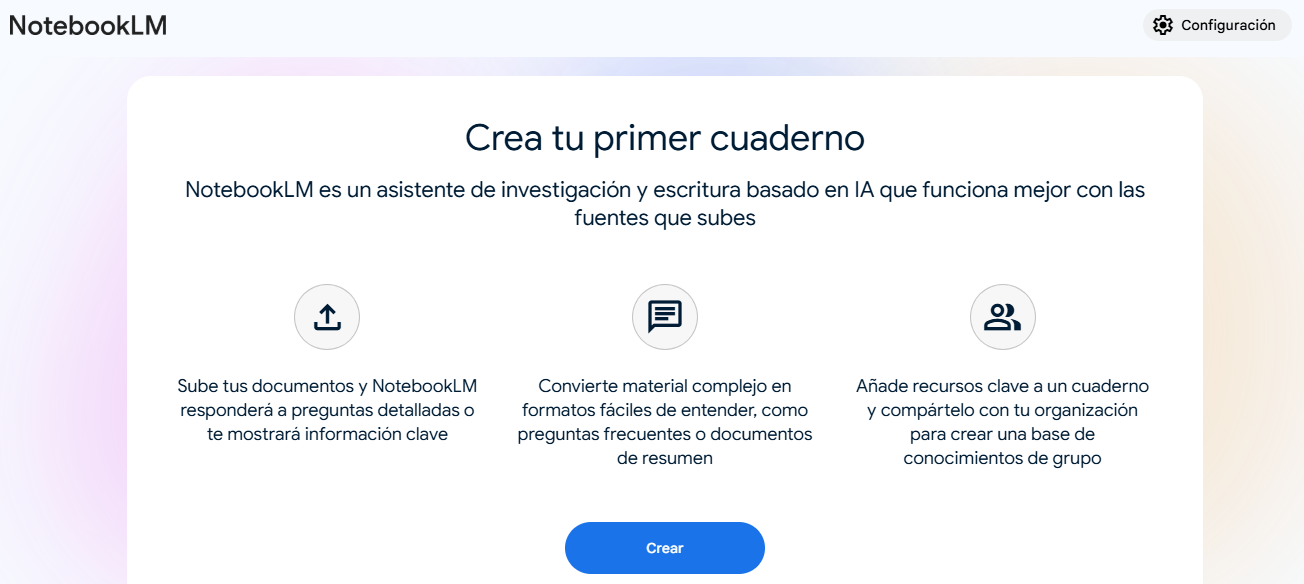
When you first access the site, you'll see a quick explanation of what it offers and a " Create" button . Clicking it will take you to the notebook's main screen, ready for you to add sources and start working with your materials.
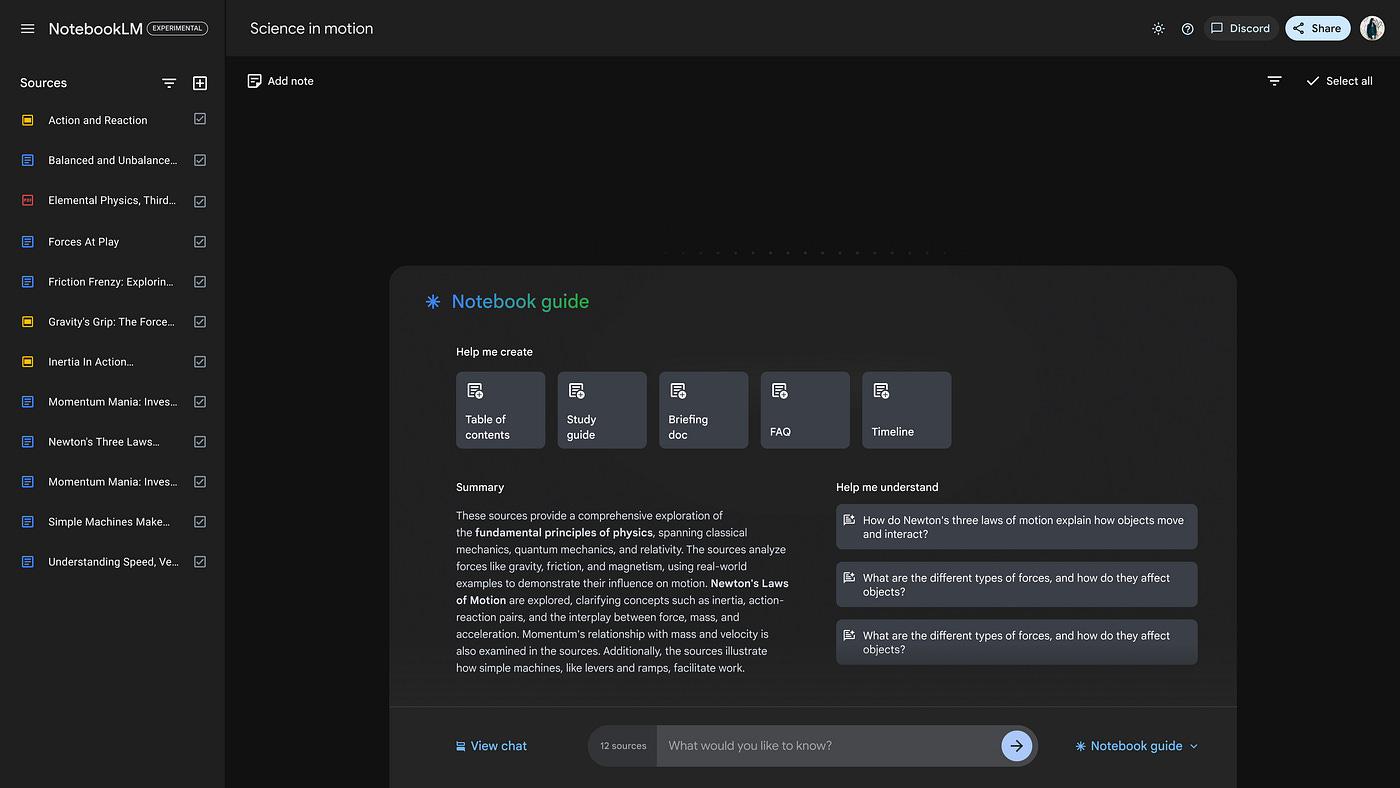
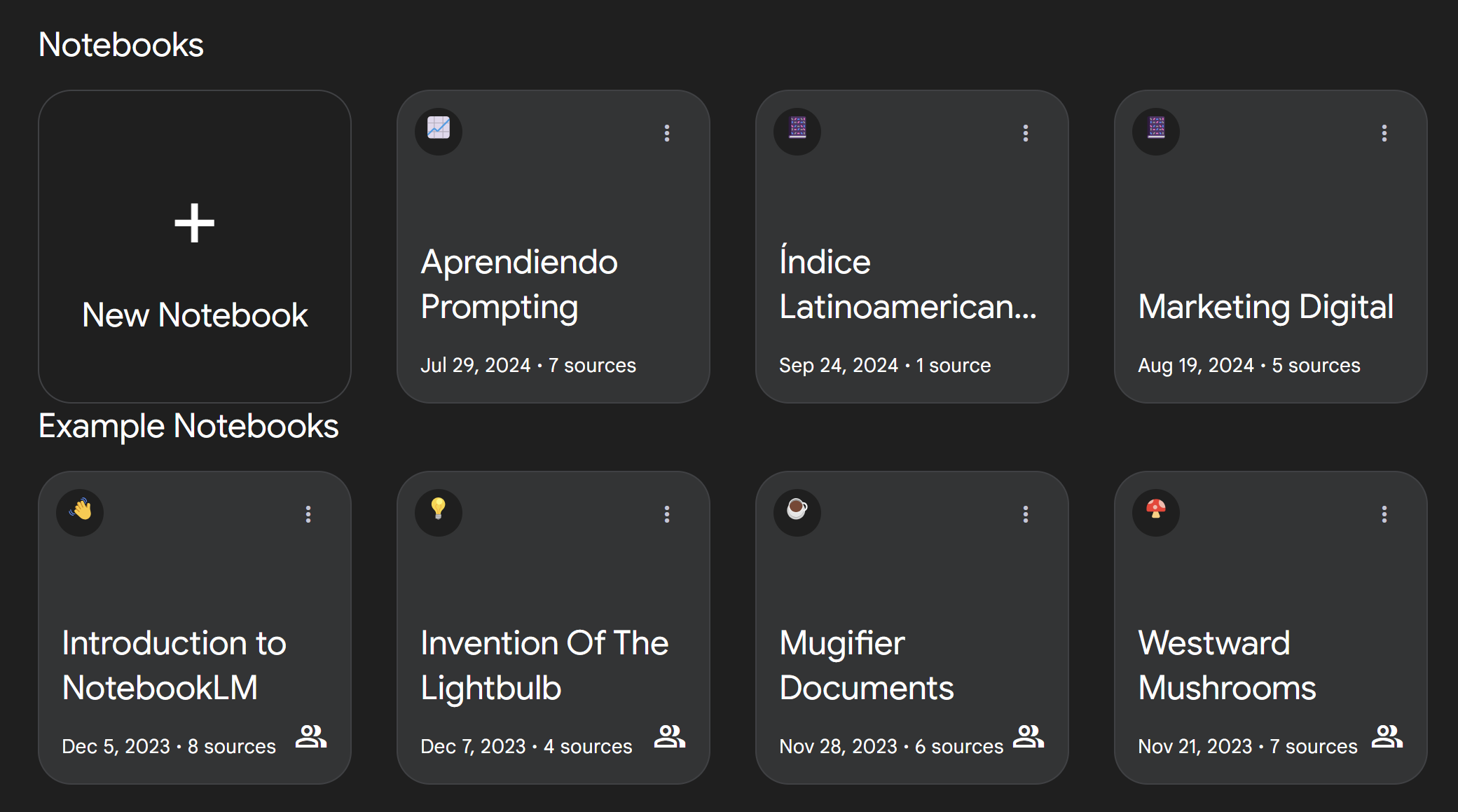
NotebookLM organizes the experience into spaces called notebooks . Each notebook is a project with its own sources and generated content. Within the notebook, the interface is usually divided into three very clear zones, designed so you don't get lost among documents.
In the left-hand column is the Sources area , where you upload whatever you want the AI to analyze: PDFs, text documents, web page links, YouTube videos , and Google Slides presentations. What you put here will form the basis of all the responses and summaries.
The central or featured area is usually the Chat . Here you ask questions, request summaries, or ask for different types of output (from a diagram to a more detailed text). It's the ideal place to be creative with your requests and get the most out of the tool.
The third important section is Studio , where you can generate an audio summary of your project. This audio, featuring two natural voices, condenses the main points from your sources and allows you to listen to them like a short podcast.
Adding and managing fonts: supported formats and limits
For NotebookLM to work its magic, it needs to be well-stocked. You can add a wide variety of materials, and it's common to mix several types in each notebook to create better connections and cross-context.
- Websites: Paste the URL of the page or article you want to include, ideal for collecting blogs or online resources.
- text documents: perfect for academic papers, reports and long notes that require synthesis.
- Paste text directly: useful if you only want to analyze a specific fragment without uploading a file.
- PDF: probably the most common format for papers, guides, manuals and regulations.
- Google Slides: Add presentations to turn slides into easier to study or summarize material.
- Youtube videos: ideal when the main source is audiovisual and you prefer to work with its transcribed and summarized content.
Keep in mind that there's a limit of 50 fonts per notebook , which is usually more than enough for most projects. If you need to add or remove fonts, managing them is very simple from the dashboard: you can add new documents , delete those that no longer fit, or rearrange them so everything makes sense.
Once the fonts are uploaded, NotebookLM displays the so-called Notebook Guide , a set of blocks that help you get started with automatic suggestions and quick views of the content.
Key features you'll see when uploading your documents
The Notebook Guide is organized into four very practical sections. You're not required to use them, but for beginners they're a great compass and save a lot of time.
- Help me create: offers several suggested tasks you can ask NotebookLM to perform based on what you've uploaded. It serves as inspiration when you don't know where to start.
- Summary: generate a brief summary with the main ideas of your sources to have a global vision without reading it all at once.
- Audio Overview: turns the content into a kind of podcast with two voices. It takes a few minutes to set up and you can download it in audio and text. It also allows you to customize the approach to adopt a more technical or informative tone, focusing on the aspects that interest you. For now, this feature is available in English.
- FAQ: suggests intelligent questions related to your content to explore angles you may not have considered.
Beyond this guide, the heart of the work is the Chat , where you ask specific questions and make specific requests. For example, you can ask for a list of ideas, a comparison between sections of two documents, or a clearer explanation of a particularly dense paragraph.
As you generate content, you can create notes within the notebook to organize the results (summaries, lists, drafts), so that everything is labeled and ready to be reused in later tasks.
If you work in a team, you have the option to share the notebooks with your organization or with specific individuals. This creates a shared knowledge base that everyone can build upon.
Those with a Google One subscription can access advanced features such as collaborative notebooks, increased limits and extra controls to customize the style of outputs, as well as greater capacity to generate audio summaries.
Web and mobile access: where to find NotebookLM
The service is accessible via your browser at notebooklm.google.com , so you can open it from any device with an internet connection. If you prefer to have it on your phone, it's also available as an app for Android (Google Play) and iPhone (App Store).
When you sign in with your Google account, you'll see the welcome screen and the Create button . From there, you can start uploading materials and building your first notebook in seconds, without any complicated setup.
Use cases: how it can help you in your daily life
One of the great uses of NotebookLM is information summarization . If you have long texts, papers, or difficult chapters, the tool can summarize them, translate them into simpler language, and highlight relationships between sections so you can understand the whole without getting stuck.
For students, teachers, and academics, it works very well as a digital tutor that answers questions, proposes exercises, or quizzes you to check your understanding of key concepts. This facilitates active learning, not just passive reading.
It also excels as an idea generator . Based on what you upload, it suggests approaches, proposes connections, and helps open up creative avenues. It's fantastic for preparing campaigns, designing strategies, or planning projects from multiple perspectives.
In a work environment, you can share notebooks with your organization so that multiple people can contribute content and create a shared knowledge base . This is very useful for teams that research markets, manage technical documentation, or prepare internal training.
Even in complex contexts, such as lengthy regulations or official bulletins, the tool is able to offer key points and explanations. In fact, it can digest long and dense documents so you retain the essential information without losing the nuance.
Practical examples of useful requests
Imagine you've uploaded a video from your favorite channel about marketing strategies. You can request a direct summary with the essential ideas and, if you need more, ask them to turn it into a sectioned outline.
If you're looking for something more refined, try a specific question based on your sources, for example: what strategies maximize return on investment within the material studied? NotebookLM will extract and organize the answer based on the information you provided.
If you want to review while walking or commuting, generate an audio summary . You'll get a short podcast where two voices discuss and contrast the key points. This audio can be customized to be more technical or more engaging and downloaded for offline listening.
In addition to summaries and questions, you can request timelines , FAQs, study guides, or a table of contents from your documents, all with one click from the suggestions offered by the tool.
When working with laws, public reports, or administrative documents, upload the PDF and request that it highlight relevant articles , exceptions, dates, and key obligations. It saves you hours of reading and gives you a clear overview of what really matters.
Comparison: NotebookLM vs. general chatbots
The key difference is the golden rule : NotebookLM only uses what you provide. It doesn't search the internet or its trained memory to fill in the gaps. This reduces the likelihood of fabricated data and makes the answers more reliable when you need accuracy.
Another advantage in serious projects is traceability . Every time it provides information, it indicates the sources it has relied on within the notebook, so you can confidently verify and cite it if needed.
With open chatbots, you can get more free-flowing ideas, but you run the risk of them introducing fantasies or mixing up information that wasn't in your materials. NotebookLM, by sticking to your documents, reduces that problem by design.
Pros and cons to consider before adopting it
On the positive side, it's a free tool with a very solid foundation: it integrates well with common formats, understands diverse sources, allows you to generate audio, cites where it gets the answers from, and organizes the work in notebooks with clear notes and sections.
In addition, Google One users have advantages such as collaborative notebooks, more customizable styles, and an expanded capacity for audio summaries and a greater number of sources per notebook, which is valuable in large projects.
On the downside, it can sometimes fail to locate data that is already in your documents, respond slowly , and, like all AI, make occasional errors or glitches. It's advisable to review its output when the context is critical.
The Audio Overview is still only available in English, which limits its usefulness if you prefer to listen to the summaries in another language. However, the audio text can be downloaded and adapted to your needs.
If you're connecting documents from Google Drive , remember to check permissions and data sensitivity. It's best to work with materials you can safely share, especially if you plan to collaborate with others.
Tips to get the most out of your chat and get better results
Think of the chat as your intellectual sparring partner . Don't just ask for a summary; try different approaches: ask for comparisons between sources, request specific examples, or demand that they highlight contradictions or gaps they find in the material.
When something doesn't convince you, ask again: request exact quotes from the document, ask for references to which section a statement belongs to, or ask them to rewrite an explanation in a simpler or more technical tone, depending on what you need.
If your goal is to study, alternate between short summaries and quizzes to check your understanding of the concepts. Ask for questions of varying difficulty levels and for feedback on your answers.
For creative projects, upload diverse sources and request brainstorming sessions guided by criteria (impact, cost, deadline). You can also request titles, content structures, or tables of contents to help you get started faster.
When the document is very long, divide it into sections and take organized notes in your notebook. This way you'll have an index of summaries, key points, and decisions made, ready to share or turn into a presentation.
Notebook structure: sources, chat, study and notes
NotebookLM's architecture makes organization easy. With sources visible, you know what the AI is considering. The chat is the workshop where you create content. The Studio area gives you the audio summary. And the notes tie everything together so you don't miss a thing.
This separation of functions helps ensure each task has its own space and prevents you from mixing responses with original documents. Ultimately, it creates a clean environment for researching, writing, and studying without losing focus.
If your work evolves, you can always create new notebooks, each with its own theme and materials . This way you avoid distractions and stay focused on what needs to be done at any given time.
Availability, cost and scope
NotebookLM is available in over 180 regions , including Spain, and can be used free of charge. Those who want to take it a step further can subscribe to Google One to unlock additional features and limits.
Access is immediate: by entering the website, logging in and clicking Create , you can start uploading documents and testing the features without complex configuration or steep learning curves.
Good practices and little tricks
Upload a variety of sources that are relevant to the notebook's purpose. If you mix very different topics, the AI will have to cover too much and you'll lose accuracy in the answers.
Use clear names for your sources and create thematic notes where you save summaries, lists of questions, and the best answers you come up with. This way, you can return to what's important with just a couple of clicks.
Take advantage of the notebook's initial guide to discover possibilities you may not have considered: timelines, FAQs, study guides, or tables of contents created on the fly from your materials.
And if you're short on time, generate the Audio Overview to take the key points with you wherever you go. Even though the audio is in English, it's useful for reviewing, and if you prefer, you can work with the text transcript.
If collaborative work is your thing, try sharing your notebook with your team to build a collective project memory. With good note-taking, you'll have a powerful repository in just a few weeks.
For those who are hesitant to take the plunge: with its summaries faithful to the sources, its chat focused on your documents and the added bonus of audio, NotebookLM fits perfectly into study, research and content creation tasks, always with the advantage that you control what the tool knows and what it doesn't.