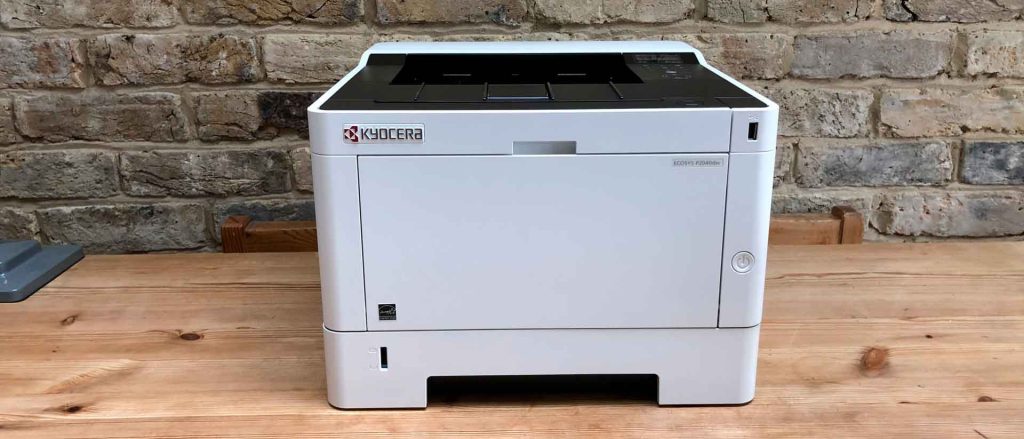
Kyocera printers are known for their durability y efficiency, but may display warning messages, such as replacing the drum unit or toner cartridge. The message «replace MK» indicates that measures are necessary to ensure the printer functions correctly.
Detecting the "Replace MK" message
The message «replace MK», also known as "replace drum unit", appears when the printer has detected that the image cylinder (also called drum) has reached its life limit. This component is essential for the Print quality, so it is necessary to replace it to avoid loss of quality in printed documents.
Steps to reset the replacement message
Below are the steps to reset the MK replacement message on a Kyocera printer:
1. Turn off the printer
Before starting any procedure, turns off the printer correctly using the power button. Disconnecting the printer from the power supply will add safety to the process.
2. Open the printer cover
After turning it off, open the printer's front cover. This provides access to the toner cartridge and drum. Make sure the printer is unplugged.
3. Remove the print drum
With the lid open, remove the print drum. This can be done by gently pulling it straight out. It's important to handle it carefully, as rough handling can cause damage.
4. Replacing the drum
If requiredInstall a new drum. Make sure the drum is compatible with your specific Kyocera printer model. Install the new drum securely in its proper place.
5. Close the printer cover
Once the drum is in place, close the printer lid. Make sure it's fully closed to avoid any problems.
6. Turn on the printer
With everything back in place, you can turn the printer back on. Check that the message doesn't appear again. «replace MK».
Reset the drum counter
If after following the steps above the message persists, it may be necessary Reiniciar The drum counter. This process varies slightly between different Kyocera printer models, but typically includes the following steps:
1. Enter service mode
To enter service mode, press a specific set of buttons on the control panel. This set typically includes the "position" button followed by the "cancel" button. The exact sequences may vary, so consulting the owner's manual or technical documentation is essential.
2. Select the reset option
Once in service mode, use the navigation keys to select the option to reset the drum counter. Confirm your selection by pressing the "OK" or "Start" button.
3. Exit service mode
After completing the reset, exit service mode by repeating the navigation key process or simply power cycle the printer.
Key recommendations
During the recovery process, it is important to remember some recommendations:
Toner management
When handling the toner cartridge or drum, it is essential not to touch the image cylinder directly with your fingers, as the fat natural skin can cause stains or damage. Using disposable gloves can be a wise choice.
Model verification
Make sure the replacement cartridge or drum is compatible with your specific printer model. Using manufacturer-approved products can help avoid future problems.
regular maintenance
Regular printer maintenance, including cleaning and checking components, is recommended to prolong printer life and optimize performance.
Helpful Resources
For users who need more information on how to handle the message replace MK, you can consult the official Kyocera website here for specific assistance and manuals. Additionally, there are numerous online forums where you can share experiences and solutions to common problems.
Consult with a technical service
If the problem persists after following the steps above, you may want to consider consulting a specialized technical service. A professional can assess the situation and provide effective solutions. Technical diagnostic capabilities are often more advanced than self-preservation methods, especially if you experience recurring problems.
By following these steps and recommendations, you can reset the MK replacement message on a Kyocera printer and ensure optimal performance.