- Adjust frequency bands and channels to reduce saturation and improve latency.
- Elimination of legacy protocols and configuration of QoS to prioritize critical traffic.
- Optimization of physical location and deployment of Mesh systems to eliminate dead zones.
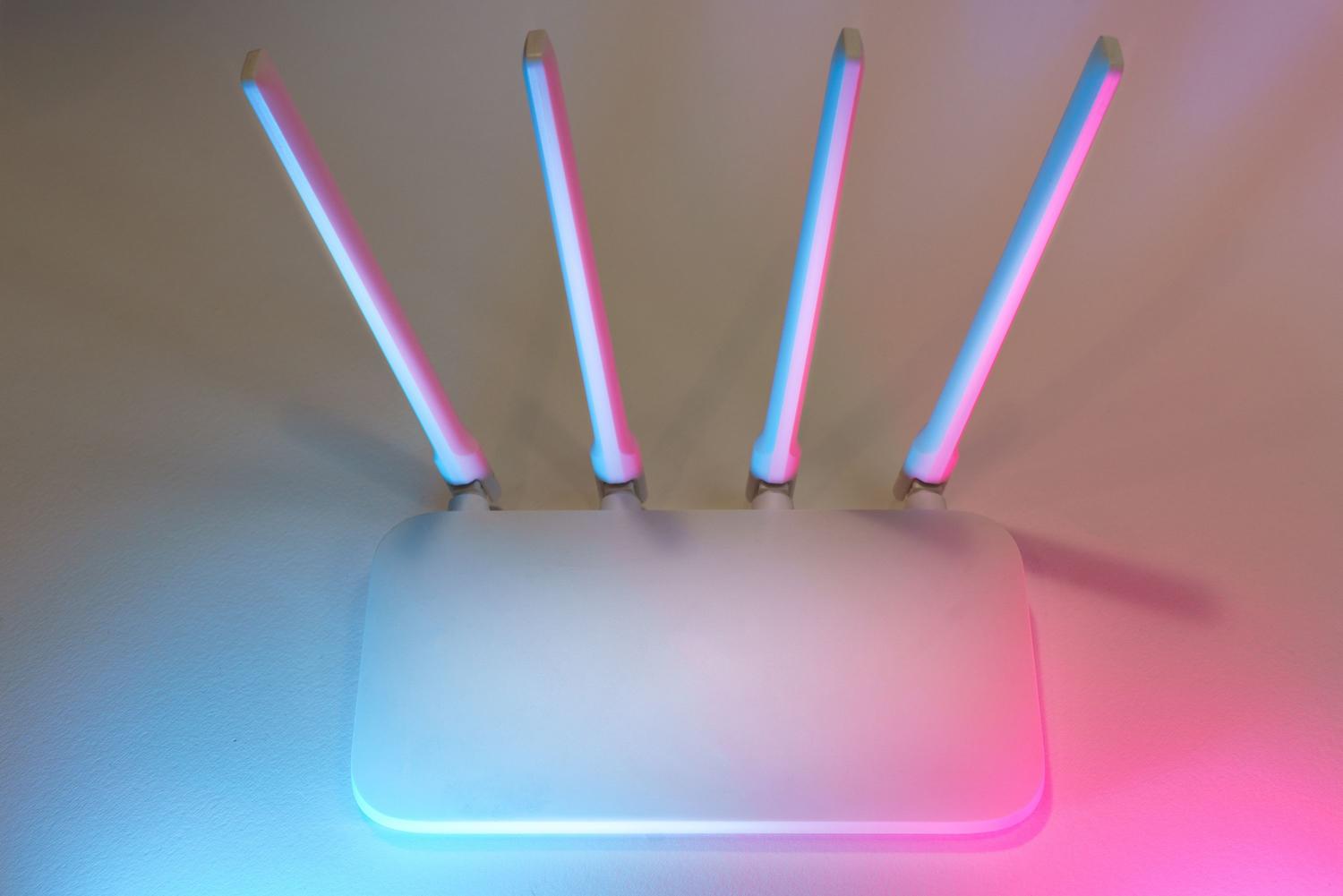
I'm sure it's happened to you: you sign up for the fastest fiber optic internet on the market, but when you try to watch a movie or play an online game, the connection is incredibly slow or you get those annoying dropouts that ruin the experience. Don't worry, because most of the time the problem isn't the internet connection itself, but rather that the router is configured by the factory to be compatible with everything, which means it's not optimized to get the most out of your home's network.
Adjusting your router settings can be a little intimidating if you're not an expert, but the truth is, with a few simple tweaks, you can transform your network. In this guide, we'll take an in-depth look at how to maximize your Wi-Fi speed , from router placement to advanced software tricks that often go unnoticed, so you can browse at lightning speed and without interference.
The first step: Network security and cleanliness
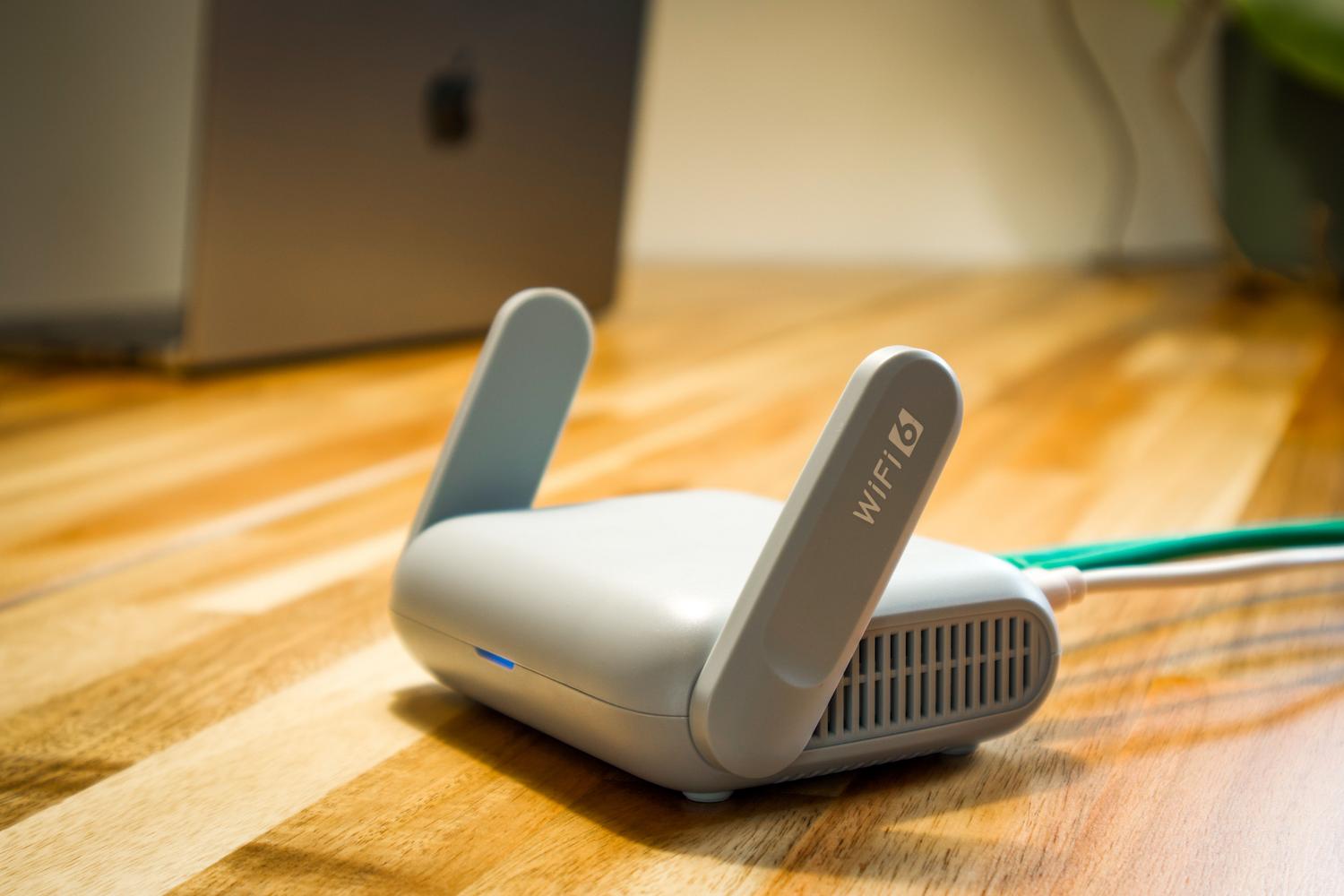
Before tweaking your speed, you need to clean up your security. Many people leave the password on the sticker, and that's a huge mistake. Changing your SSID (your network name) and password is essential, not only to prevent unscrupulous neighbors from stealing your bandwidth, but also to prevent unauthorized access to your connected devices and avoid risks like identity theft and unauthorized access.
To do this, you need to access the management interface, which is usually done by typing 192.168.1.1 or 192.168.0.1 into your browser. Once logged in, change your password and the control panel password to secure everything.
If you have guests or many smart home devices, the smartest thing to do is to activate a guest network that is isolated from the rest.
Adjusting the bands and channels for flying
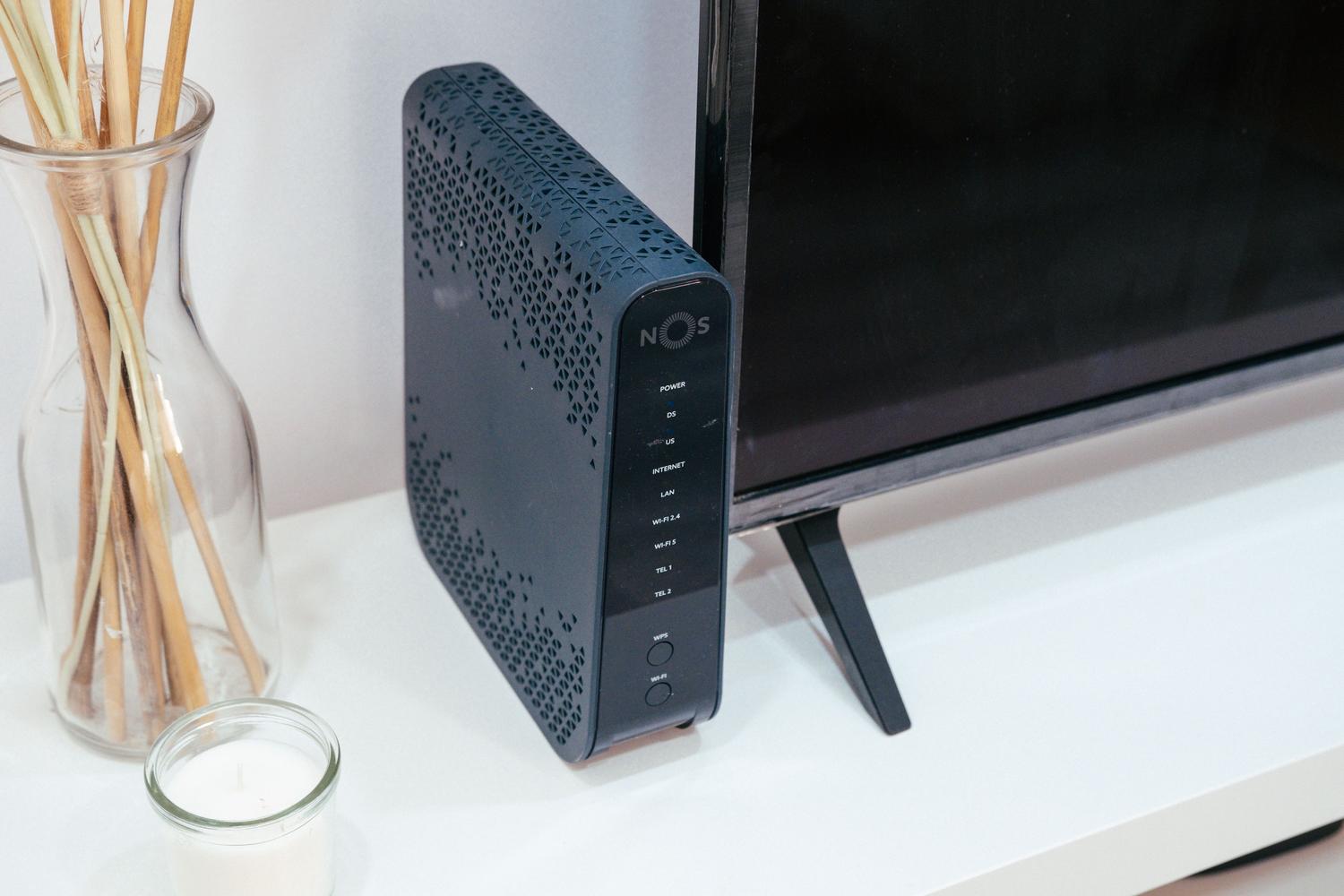
Almost all modern routers are dual-band or tri-band. You have the 2.4 GHz band, which has a long range but is slow, and the 5 GHz band (or 6 GHz in the top models), which is much faster and more stable . The key is knowing which band is best for each situation and adjusting it accordingly.
- 2.4 GHz band: for old or remote appliances.
- 5 GHz band: for 4K streaming and gaming.
- 6 GHz band: for the most modern, with low latency.
There's a setting called Band Steering that chooses for you, but it doesn't always work well. That's why it's best to separate the networks and choose manually.
You should also pay attention to the channel: if it's heavily used by neighbors, your signal will suffer. With apps like WiFi Analyzer, you can see which channel is least congested and switch to it.
Advanced tricks: the end of the mixed mode penalty
There's a hidden setting that can change your performance: compatibility with the older 802.11b and 802.11g protocols. These standards, designed for equipment from 20 years ago, slow down the entire network to adjust. If you disable these modes and leave only the modern standard, your Wi-Fi performance will noticeably improve.
Also, for gamers, it's very useful to open ports and activate QoS (Quality of Service) so that your games or video calls have priority and are not affected.
Physical location: Don't enclose your signal
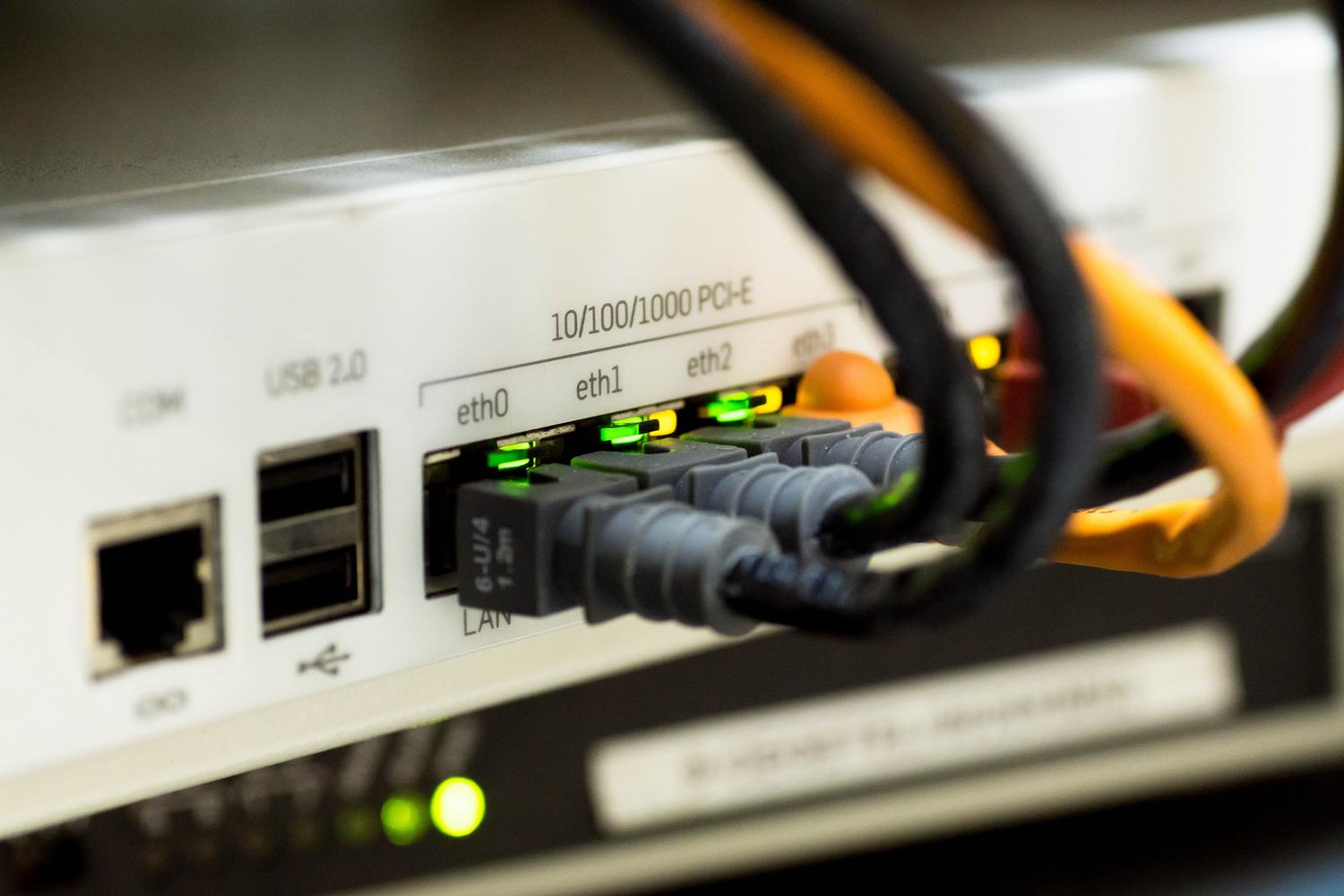
The router's position is key. Place it in a central spot in the house and at a reasonable height; don't hide it. If it has antennas, one vertical and one horizontal usually work better than having them all at the top.
For large houses, the best option is to install Mesh systems that cover all rooms without losing coverage.
Keeping the firmware up to date also helps. And if you notice sluggishness, a reboot every so often is a great way to clear errors.
Proper network setup is almost as important as the fiber optic contract itself. Following these steps will show you the difference.